
How to Install MeshCentral on AlmaLinux 9
MeshCentral is a powerful open-source remote management platform that allows you to manage devices, remote desktops, terminals, and files from a centralized web interface. Running it on AlmaLinux 9 provides a stable and secure server environment suitable for both personal and production deployments.
This guide walks you through the complete installation and configuration process for MeshCentral on AlmaLinux 9, including:
- Installing Node.js 20
- Installing MeshCentral
- Configuring MeshCentral
- Running MeshCentral as a systemd service
At the end of this tutorial, you will have a fully functional self-hosted MeshCentral server running persistently on AlmaLinux 9.
Prerequisites
Before starting, make sure you have:
- A fresh AlmaLinux 9 server
- Root or sudo access
- Internet connectivity
- Ports 80 and 443 open in your firewall if remote web access is required
Step 1: Connect to the Server
Linux / macOS
ssh root@YOUR_SERVER_IP
Windows (PowerShell / Windows Terminal)
ssh root@YOUR_SERVER_IP
Windows (PuTTY)
Use the following settings:
- Host Name: YOUR_SERVER_IP
- Port: 22
- Connection Type: SSH
- Username: root
Step 2: Update the System
Update all installed packages and apply the latest security patches.
dnf update -y
This command:
- Updates installed packages
- Applies security fixes
- Prepares the system for MeshCentral installation
Step 3: Install Required Dependencies
Install the required system packages.
dnf install -y curl ca-certificates gnupg
These packages are used for:
- Downloading installation scripts
- Verifying HTTPS connections
- Validating repository signatures
Step 4: Install Node.js 20
MeshCentral requires a modern Node.js runtime.
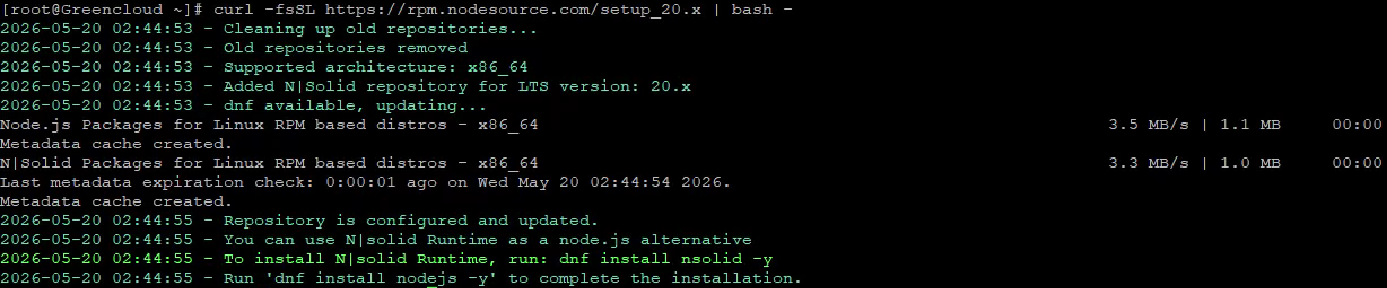
Add the official NodeSource repository:
curl -fsSL https://rpm.nodesource.com/setup_20.x | bash -
Install Node.js:
dnf install -y nodejs

Verify the installation:
node -v
npm -v
You should see Node.js 20.x and a recent npm version.
Step 5: Install MeshCentral
Create the application directory:
mkdir -p /opt/meshcentral
cd /opt/meshcentral
Install MeshCentral using npm:
npm install meshcentral
Create the data directory:
mkdir -p /opt/meshcentral/meshcentral-data
This directory stores:
- Configuration files
- Runtime logs
- Database files
- Server data
Step 6: Configure MeshCentral
Create the configuration file:
vi /opt/meshcentral/meshcentral-data/config.json
Paste the following configuration:
{
  "settings": {
    "port": 443,
    "redirPort": 80,
    "selfUpdate": false
  },
  "domains": {
    "": {
      "title": "MeshCentral",
      "newAccounts": true
    }
  }
}

Configuration overview:
- port: HTTPS listening port
- redirPort: Redirects HTTP traffic
- selfUpdate: Disables automatic updates
- newAccounts: Allows administrator account creation
Step 7: Test MeshCentral Manually
Start MeshCentral manually to verify that it launches correctly.
node /opt/meshcentral/node_modules/meshcentral

If the server starts successfully, stop it using:
CTRL + C
Step 8: Create a systemd Service
Create the systemd service file:
nano /etc/systemd/system/meshcentral.service
Paste the following configuration:
[Unit]
Description=MeshCentral Server
After=network.target

[Service]
Type=simple
ExecStart=/usr/bin/node /opt/meshcentral/node_modules/meshcentral
WorkingDirectory=/opt/meshcentral
Restart=always
RestartSec=10
Environment=NODE_ENV=production

[Install]
WantedBy=multi-user.target

Reload systemd:
systemctl daemon-reload
Enable MeshCentral at boot:
systemctl enable meshcentral
Start the service:
systemctl start meshcentral
Check the service status:
systemctl status meshcentral
If everything is working correctly, the service should display as:

active (running)
Step 9: Configure Firewall
If FirewallD is enabled, allow SSH, HTTP, and HTTPS traffic.
firewall-cmd --permanent --add-service=http
firewall-cmd --permanent --add-service=https
firewall-cmd --reload
Verify allowed services:
firewall-cmd --list-services

Expected output:
cockpit dhcpv6-client ssh http https
Step 10: Access MeshCentral
Open your browser and visit:
https://YOUR_SERVER_IP
You should now see the MeshCentral web interface.

Troubleshooting
Check MeshCentral Logs
journalctl -u meshcentral -f
Verify Listening Ports
ss -tulpn | grep -E '80|443'
Restart MeshCentral
systemctl restart meshcentral
Conclusion
You have successfully installed and configured MeshCentral on AlmaLinux 9.
Your setup now includes:
- A fully self-hosted remote management platform
- Persistent background service management with systemd
- A stable Node.js 20 runtime environment
- Centralized remote access and device management
This deployment provides a reliable and lightweight platform for remotely managing servers, workstations, and devices from a single web-based interface.
